
On this page
What user experience is
Does the page appear quickly? Does it stay still while it loads, or does the button move just as they tap it? Can they read it on a phone without pinching? Is it obvious what you do, what it costs and what to do next? And does anything make them doubt you: a broken link, a missing address, a form that fails?
It matters because every channel you pay for or work at ends on a page. Search rankings, ads, social posts and emails all send people somewhere, and the page decides whether that effort turns into a customer. A site that’s slow or confusing taxes every visit, from every source.
This hub covers four parts of it, each with its own page: web design, web development, content marketing and email marketing.
Speed and stability
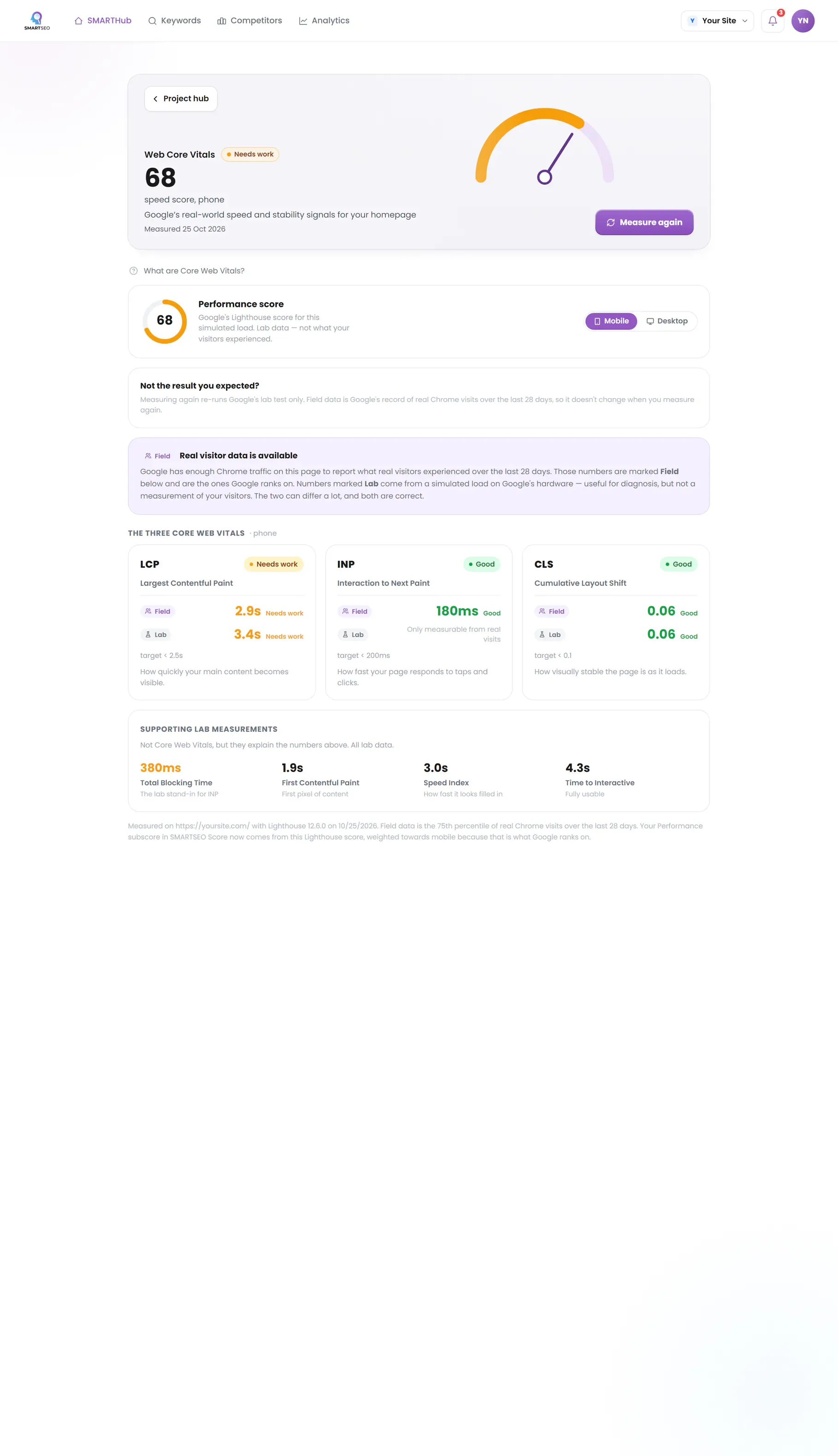
Google measures real visitors’ experience with three Core Web Vitals:
Google reports these from real Chrome visitors when a site has enough of them. Smaller sites often have none, which is when lab tests like Lighthouse are the best guide you have.
Mobile is where speed is lost.
Phones have slower processors and often slower connections, so a page that scores well on desktop can be poor on mobile. Test mobile first.
Clarity
Speed gets people to the page; clarity keeps them.
Within a few seconds a visitor should know what you offer, who it’s for, and what to do next. That means a heading that says what the page is about in plain words, one main action rather than five competing ones, and navigation where every item goes somewhere.
Clarity is also structure. Pages that end with nowhere to go, menus that hide the pages people want, and labels only you understand all cost visits. Each page should link to the next step and back up to its section.
Accessibility
An accessible site works for people using keyboards, screen readers, zoom, high-contrast settings or voice control, and in practice it works better for everyone. Start with the basics: text with enough contrast, images with alt text, links that say where they go, forms with labels, and never blocking zoom. Many visitors with weaker eyesight rely on pinch-to-zoom on phones, and a theme that disables it shuts them out.
Trust
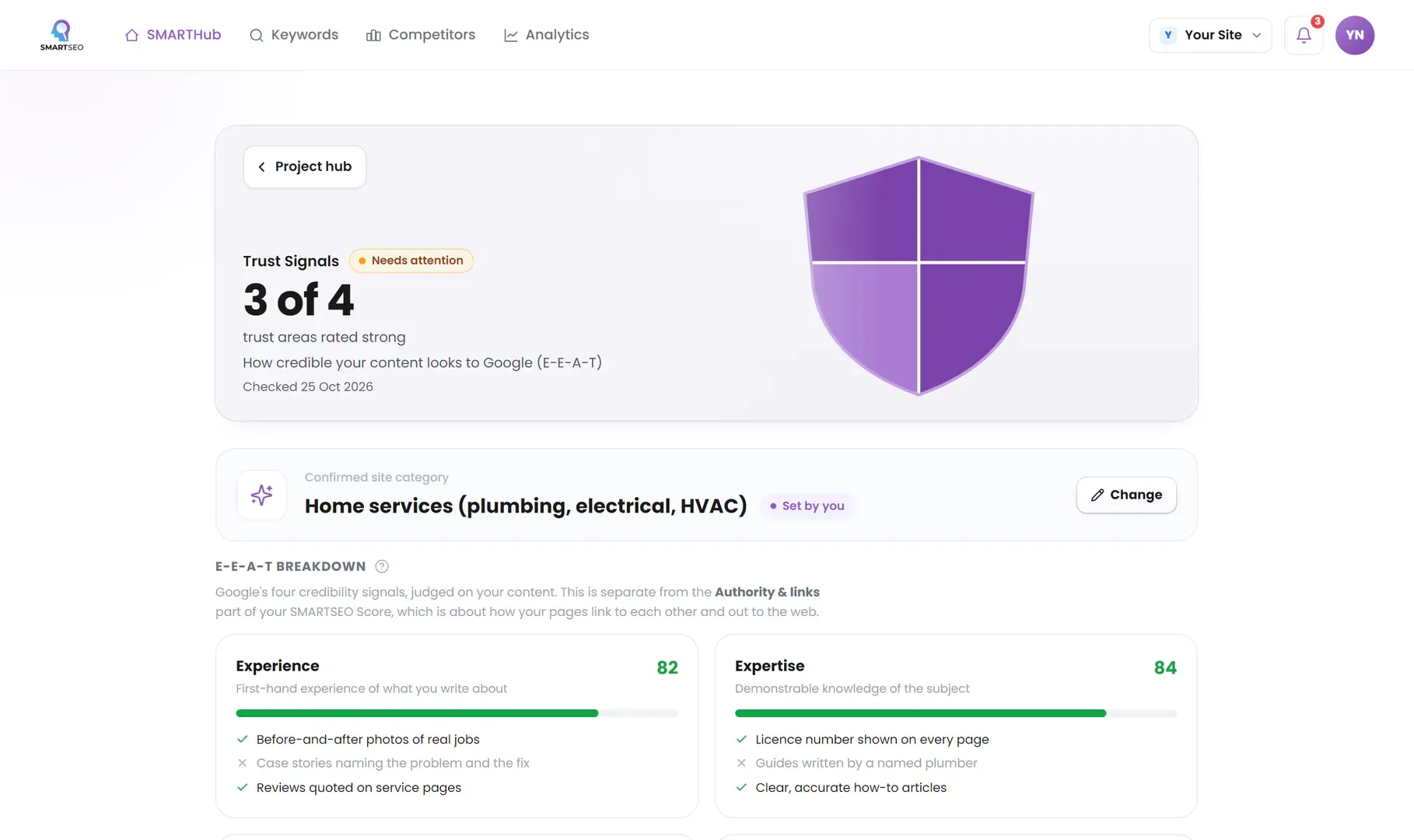
People decide quickly whether to trust a site. A secure connection, real contact details, clear policies, honest prices and reviews where they make sense all count. So do the small things: a link that goes nowhere or a page that errors makes the rest feel less reliable. The details that matter depend on the kind of site: a shop needs returns and shipping information; a local business needs an address and hours; a professional service needs to show who is behind it.
How to check it yourself
- Search for your business on your phone.
Take your phone, switch to mobile data, and search for your business as a new customer would. Land on the page, and watch it load: does content appear quickly, and does anything jump?
- Zoom, and tap every menu item.
Try to zoom. Open the menu and tap every item.
- Try the main action.
Try the main action, whether that's buying, booking or sending a form. Note everything that slowed you down or made you hesitate.
- Run PageSpeed Insights.
Then run your homepage through PageSpeed Insights and read the mobile tab first. If it says there isn't enough real-user data, use the lab results and the list of opportunities below them.
SMARTSEO measures your homepage’s speed and stability on mobile and desktop, reads every page for problems like zoom blocked, links that go nowhere and dead-end pages, and checks the trust details your kind of site should show.
The problems we find most often
Each of these is a check SMARTSEO runs on every scan, in the words the app uses. Open one to see what triggers it and how to fix it.
WarningHomepage is slow on mobile
- What triggers it
- Lighthouse scores your homepage under 50 on mobile.
- Why it matters
- A slow page loses visitors before it loads, and page experience is one of the signals Google uses.
- How to fix it
- See Web Core Vitals for what slows it down.
WarningPage layout jumps while loading (CLS)
- What triggers it
- Your homepage’s layout shifts by more than 0.25 while it loads (lab).
- Why it matters
- Cumulative Layout Shift measures how much the page moves as it loads, the thing that puts a button under your thumb. Over 0.25 is poor.
- How to fix it
- Reserve space for images, ads and embeds before they load.
WarningMissing mobile viewport tag
- What triggers it
- A page has no mobile viewport meta tag.
- Why it matters
- Most searches happen on phones; without a viewport tag the page renders as a shrunken desktop layout, hurting the mobile Experience.
- How to fix it
- Add <meta name="viewport" content="width=device-width, initial-scale=1"> to the head of every page.
NoticeViewport stops people zooming
- What triggers it
- The viewport tag stops people pinching to zoom (user-scalable=no, or a maximum scale below 2).
- Why it matters
- The viewport tag stops visitors zooming in, which makes small text hard to read for many people.
- How to fix it
- Remove user-scalable=no, and any maximum-scale below 2, from the viewport tag.
WarningPages that link nowhere
- What triggers it
- A page has no links to any other page of your site.
- Why it matters
- Pages that link nowhere are dead ends — they pass on none of the authority they receive.
- How to fix it
- Add contextual internal links from each page to related pages on your site.
WarningLinks with no text
- What triggers it
- A link has no text, no label and no image description, so it says nothing about where it goes.
- Why it matters
- These links have no words, label or image description, so neither visitors using screen readers nor Google can tell where they go.
- How to fix it
- Add link text, an aria-label, or alt text on the linked image.
What our old site got wrong
Before this site was rebuilt, SMARTSEO read our old WordPress site and found three user experience problems on nearly every page: the theme stopped visitors zooming on phones, menu items were links that went nowhere, and the homepage was slow on mobile while looking fine on desktop.
SMARTSEO’s own project for its own site, read from stored data on October 28, 2026.
None of them showed on a quick look at a laptop. All three are fixed in the rebuilt site, which is static, has no zoom lock and no empty links, and starts its tag manager only after the page has loaded.
In this section
- Content MarketingPages written for the searches and questions you're missing.
- Email MarketingLists, sequences and deliverability: email that reaches the inbox and gets read.
- Web DesignMobile-first layouts, clear navigation, and redesigns that keep your rankings.
- Web DevelopmentRendering, server speed, page weight and security: the build behind the design.
Questions people ask
What is user experience in SEO?
How easy and pleasant your site is to use: whether it loads quickly, stays still while it loads, works on a phone, and lets people find what they came for. Google measures part of it directly through Core Web Vitals, and the rest shows up in whether visitors stay and act.
Does user experience affect rankings?
Page experience, including Core Web Vitals, is one of many signals Google uses, and it rarely outweighs relevance. Its bigger effect is on what happens after the click: a slow or confusing page loses the visitors your rankings earned.
What are Core Web Vitals?
Three measurements Google uses for real-world experience: Largest Contentful Paint (how quickly the main content appears), Interaction to Next Paint (how quickly the page responds), and Cumulative Layout Shift (how much it jumps while loading).
Should I redesign my site or fix what I have?
Fix first if the content and structure work and the problems are speed, mobile layout or broken pieces. Redesign when the site can't express what you sell, the platform fights every change, or the fixes would touch every template anyway.
How do I know my site works on mobile?
Use it on a real phone, on mobile data, as a new visitor would: land on a page from search, try to zoom, open the menu, and complete the main action. Then check the mobile results in PageSpeed Insights, which are usually much worse than desktop.
What we do for you
- Redesigns that keep your rankings and fix what visitors struggle with
- Full website and app builds, fast by default
- Speed and Core Web Vitals work on an existing site
- Content plans and pages for the searches you're missing
- Email programs, as expert help