
On this page
What Google Tag Manager is
You add one container snippet to every page once, and from then on tags are added, changed and removed in Tag Manager’s interface rather than in your site’s code.
It matters because tags multiply.
A typical business site gains a new one every few months, for a campaign, a tool or an agency. Without a tag manager each one is a change to the site; with one, they live in a single place you can see, test and roll back.
How it works
Versions record every published state of the container, so any change can be reviewed and undone.
Preview mode lets you browse your site with the unpublished container and see, step by step, which tags fired and why.
Setting it up properly
- One container per site.
Install its two snippets, in the head and just after the body tag, on every page template.
- Move the hard-coded tags in.
Recreate each one in Tag Manager, then remove it from the code, so nothing is counted twice.
- Fire on data layer events.
Ask developers to push named events when things happen, instead of firing on button text or CSS classes that change with a redesign.
- Preview, then publish with a note.
Test each change in Preview on the live site, then publish it as a version that says what changed and why.
Before and after: the page template
Example for illustration; not a client's data.
Keeping a container healthy
A clean container is one where every tag has a reason, a name that says what it does, and a trigger narrower than “All Pages” unless it really needs to be everywhere. Use folders and a naming convention, review the container quarterly, and remove access for people and agencies who no longer need it.
Speed is part of health. Each third-party tag adds requests and script work in the visitor’s browser. Load only what the page needs, and delay what isn’t essential, such as heatmaps or chat, until after the page has rendered. This site starts its own Tag Manager container on the visitor’s first interaction, or a few seconds after the page loads, for exactly that reason.
How to check it yourself
- Count the tags.
Open your container and count the tags; for each, ask who owns it and what decision its data informs.
- Watch them fire.
Then open Preview mode, load your homepage and a conversion page, and check which tags fire on each.
- Measure the cost.
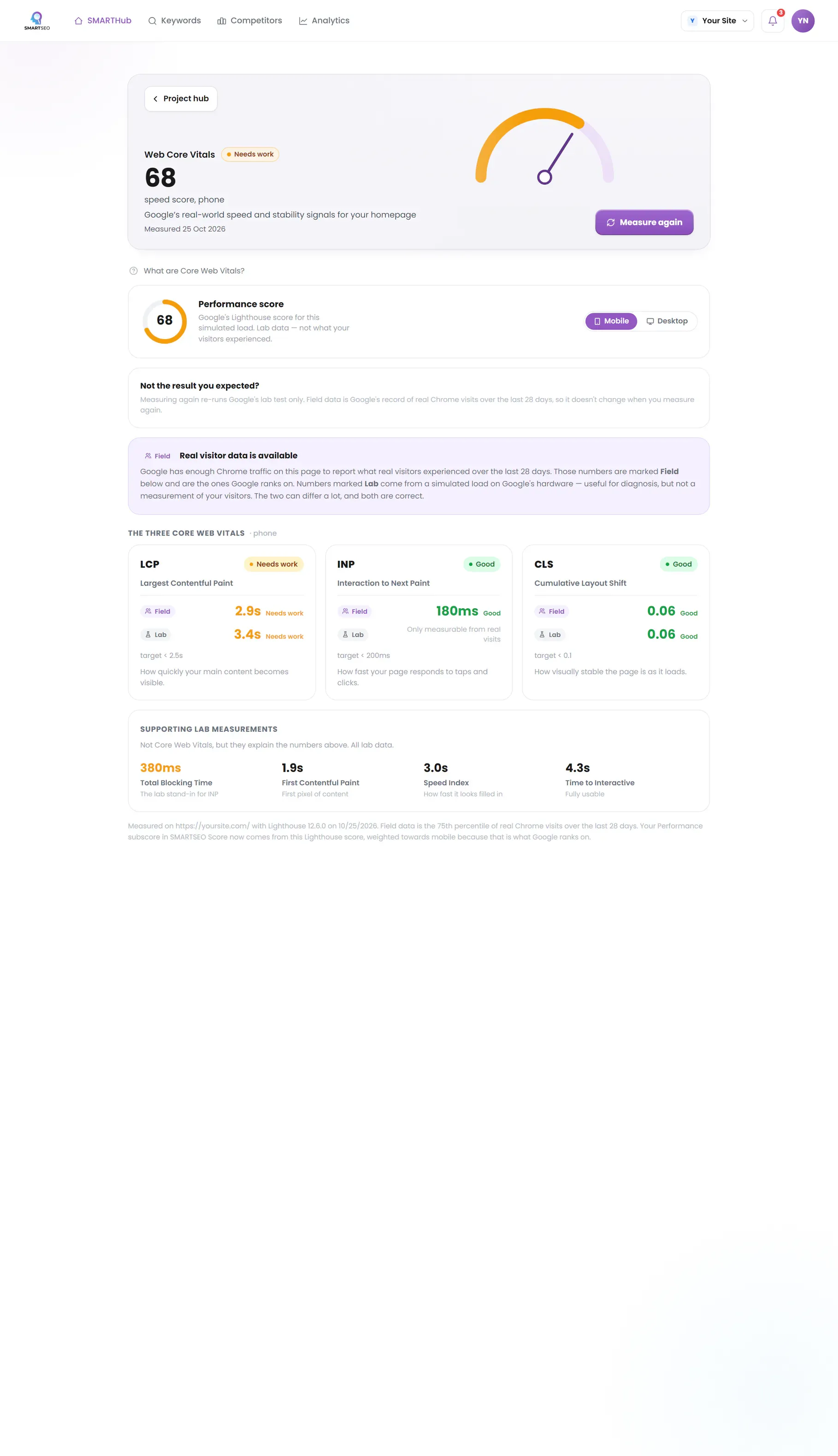
Finally, run your homepage through PageSpeed Insights and look for third-party scripts in the list of what's slowing it down.
SMARTSEO measures how busy your homepage is with scripts and lists the speed fixes Lighthouse suggests, which is where a crowded container shows up.
The problems we find most often
Each of these is a check SMARTSEO runs on every scan, in the words the app uses. The last ones come from hands-on work, outside what the app checks. Open one to see what triggers it and how to fix it.
NoticePage is busy with scripts (TBT)
- What triggers it
- Scripts block your homepage for more than 600 ms in total (lab).
- Why it matters
- Total Blocking Time is how long scripts stop the page responding while it loads. It's the lab's stand-in for how quickly a page reacts to a tap.
- How to fix it
- Defer or remove heavy JavaScript.
NoticeSpeed fixes Lighthouse suggests
- What triggers it
- Lighthouse names fixes that would save measurable loading time.
- Why it matters
- Lighthouse estimates each of these would make your homepage load noticeably faster on mobile. The estimate comes from one lab run.
- How to fix it
- Start with the largest saving. The Web Core Vitals page has the run.
ErrorGA4 installed twice
- What we see
- A GA4 snippet in the page code and a GA4 tag in the container.
- Why it matters
- Every page view is counted twice.
- How to fix it
- Remove the hard-coded snippet and keep the tag in Tag Manager.
WarningTriggers tied to button text
- What we see
- A conversion fires on clicks whose text is “Send”.
- Why it matters
- A copy change or redesign silently stops the tracking.
- How to fix it
- Fire on a data layer event pushed when the form is accepted.
WarningPublishing without testing
- What we see
- Changes go live straight from the workspace, and reports break the same day.
- Why it matters
- When numbers jump, nobody can tell which change caused it.
- How to fix it
- Test every change in Preview mode, name and describe each version, and publish knowing you can roll back.
NoticeTags nobody remembers
- What we see
- A container with dozens of tags from past agencies and tools, some still firing on every page.
- Why it matters
- They make the container harder to read and slower to load.
- How to fix it
- List every tag with its owner and purpose, pause anything nobody can explain, and delete it after a quiet month.
CommonEverything fires on All Pages
- What we see
- Conversion tags and heavy third-party scripts load on every page view.
- How to fix it
- Fire each tag only where it's needed: conversion tags on the confirmation step, chat widgets where support is offered.
CommonToo many people with Publish rights
- What we see
- Everyone who ever touched marketing can publish to the live site.
- How to fix it
- Give publish rights to a few people, use Edit or Approve for the rest, and remove former staff and agencies.
Questions people ask
Is Google Tag Manager free?
Yes. Google Tag Manager is free; Tag Manager 360, the paid version, adds enterprise features like zones and approvals for large organizations.
Does Tag Manager slow my site down?
The container itself is light. What slows pages is what it loads: every third-party tag adds requests and script work. Fewer tags, fired only where needed, and loading non-essential ones after the page has rendered keep the cost down.
Should GA4 go through Tag Manager or directly on the site?
Through Tag Manager, if you use it for anything else. One place for every tag means one place to check, test and change, and no risk of the GA4 tag being installed twice.
What is server-side tagging?
Running a Tag Manager container on your own server, which receives events from the site and forwards them to analytics and ad platforms. It gives more control over what data leaves your site and can reduce scripts in the browser, at the cost of hosting it.
Do I still need a developer?
For the container snippet and the data layer, yes, once. After that, most tracking changes are made and tested in Tag Manager.
What we do for you
- Container setup or cleanup, with every tag documented
- Hard-coded tags moved into the container, without double counting
- GA4, ads and conversion tags with the right triggers
- A data layer and naming plan your team can follow
- Workspace, version and permission practices that prevent surprises